Loading top shows...
×
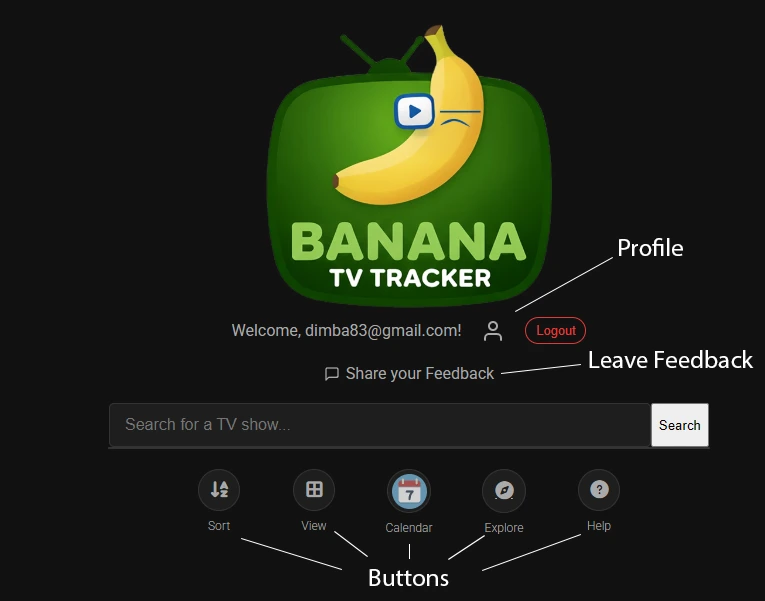
How to use the Tracker
General Tip: You can close any pop-up modal (like this one, or the show details) by either clicking the × button in the corner or by clicking on the dimmed area outside the modal. The app also uses fade-in/fade-out transitions for smooth page loading.
Adding Shows
Use the search bar at the top (or the "Explore" page) to find a show. Click the "Add to Tracker" button from the search results or inside the show's detail modal.
Viewing Your Shows
Your tracked shows appear on the main page. You can toggle between a Grid View and a List View using the "View" button in the control bar.
Visual Cues:
- - Cards with a red background have unwatched episodes.
- - Cards with a green background mean all aired episodes are watched.
- - Shows with an upcoming airdate will show a full, live countdown timer.
Tracking Episodes
Click on a show's poster or title (the card header) to open its details. The modal will open directly to the Seasons tab by default.
- - Click an episode to mark it as watched/unwatched.
- - Click and drag over multiple episodes to mark them all at once.
- - Click the checkbox next to a season name to mark the entire season.
Exploring New Shows
Click the Compass icon in the header to go to the Explore page. Here you can find new shows to add.
- - Use the "View" dropdown to filter by Trending, Top Rated, or Latest Running shows.
- - Use the "Genre" dropdown to add a genre. The filters work together! (e.g., "Trending" + "Science-Fiction").
Deleting Shows
Long-press (or click and hold) on any show card on your main page to enter "Delete Mode". You can then tap to select multiple shows and delete them at once.
Your Profile & Stats
Click the Profile icon in the header (next to your email) to see your profile page. At the top, you'll find your personal stats, including total shows tracked, episodes watched, and more.
What Data is Stored?
This app is designed to be minimal. We only store the data necessary for the app to function:
- - Your Account: Your email address and a securely hashed (encrypted) version of your password.
- - Your Shows: A list of the show IDs you are tracking.
- - Your Progress: A list of the episode IDs you have marked as watched.
That's it. No personal info, no tracking, no ad profiles.
Deleting Your Account
You can permanently delete your account at any time.
- 1. Go to your Profile page.
- 2. Scroll to the "Danger Zone" at the bottom.
- 3. Click "Delete My Account" and follow the instructions.
This is permanent. All your account data, tracked shows, and watch history will be immediately and irreversibly deleted.